DIY Cursor, or How to Make Your Own Agentic AI IDE That You Can Take Anywhere
February 26, 2026
For those who don't know me, I'm pretty big on local AI development. AI providers like OpenAI, Anthropic, Google, and others provide access to increasingly powerful LLMs. However, this comes at the cost of being a very "centralized" paradigm. The core of the majority of AI applications is an external service provided through an API and controlled by a third party company. This can be problematic for a number of reasons, from trust concerns with sending sensitive info to another company, to concerns over future costs as large-scale AI infrastructure requires increasingly more resources and AI providers become increasingly in a position to charge whatever they want for access, to censorship concerns with AI providers having full control over the models people rely on and can control what is and is not acceptable output from those models.
Fortunately, it doesn't always have to be that way. With even modestly powerful hardware, whether physically or cloud-based, it is fully possible to run free and open-source LLMs right on your own hardware with no reliance on any external AI provider. While this may not be as a powerful a solution as a model provided by an external company with access to colossal data centers of GPUs and infrastructure specially tuned to them, it can still be sufficiently powerful for many applications. More importantly, it provides a "decentralized" and "liberated" solution to AI where you become the provider and have full control and access to the models you use for your applications. To demonstrate this with something tangible and hands-on, I'm going to show you how to create your own IDE-integrated AI coding agent, hosted on hardware you own, yet accessible from anywhere. Like your own self-contained Cursor!
Bill of Materials
To follow this guide, I'll assume you have access to the following:
- A sufficiently powerful computer to run your LLMs on. The most critical part here is a powerful enough graphics card, which you may already have if you're into PC gaming like me! I'm currently on a desktop with an RTX 3080 GPU with 12GB of VRAM and 64GB of system RAM, so I'll structure this guide around that, but if you don't have that level of hardware, there's plenty of increasingly smaller models you can try out instead.
- Plenty of harddrive space on your host computer to store models (the model I use is 48GB for example).
- A laptop or some other system that you may want to do AI assisted development on, but may not have beefy enough hardware to run its own models directly.
- A Google, Microsoft, Apple, or Github account.
- An internet connection of course!
Let's get started!
The first thing we'll want to do is get an AI model inference setup running locally on your desktop. One of best tools for doing LLM inference (the act of generating text with an AI model) is an app called llama.cpp which you can find here. However, don't go downloading and installing llama.cpp just yet! While just llama.cpp can be totally fine for achieving what we're trying to do, there's an even simpler app we can use called LM Studio.
LM Studio basically wraps around llama.cpp (and also MLX for Apple Silicon machines) with a handy GUI to make it easy to manage your models, run chat conversations, and run servers to interact with your models via API calls (very important for later). You can download and install whichever version of LM Studio is compatible with your OS from their site here. Once you have LM Studio installed, you should see a screen that looks something like this (as of the time of this article being published):
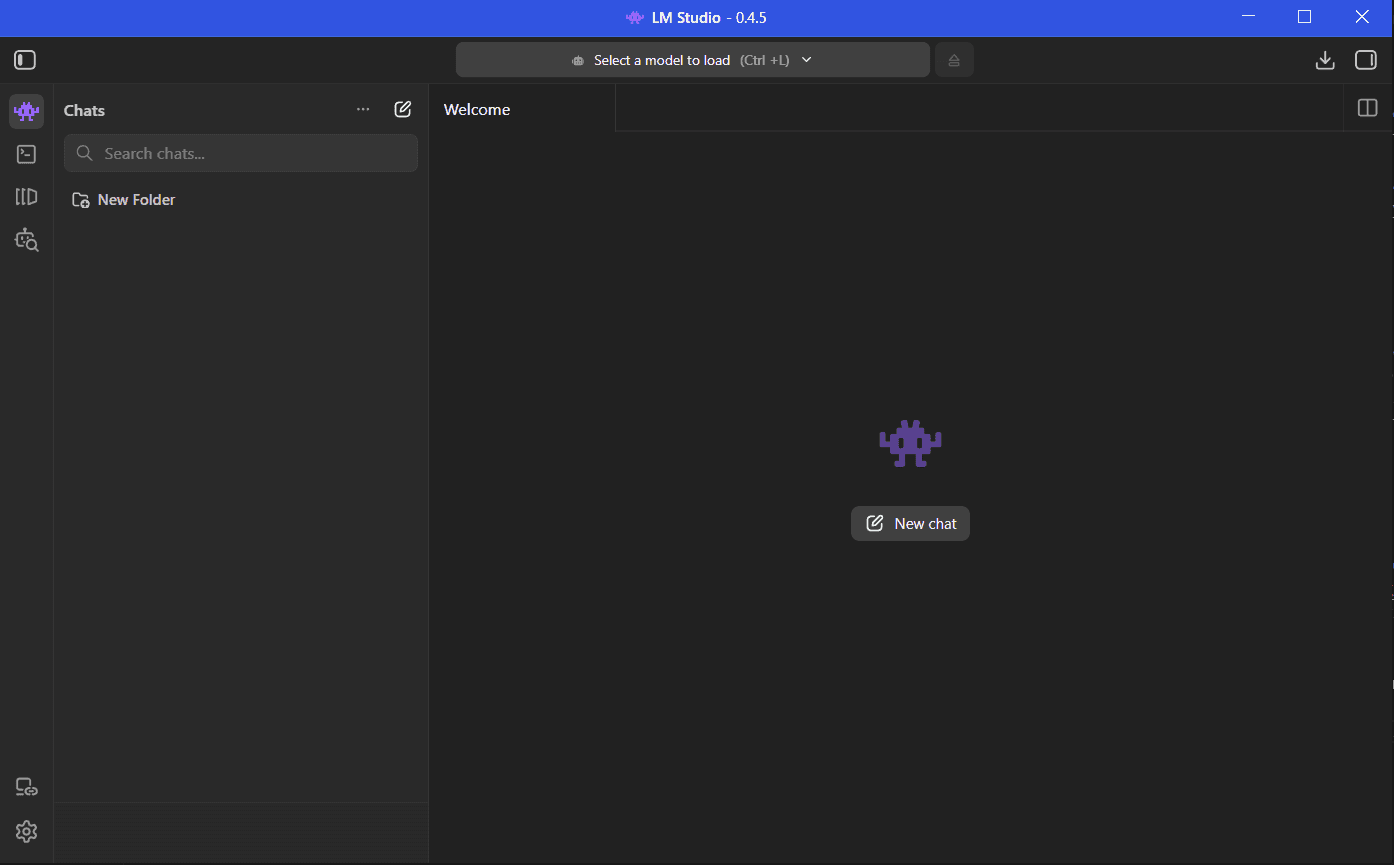
Now there's not much to look at here just yet. We'll need to download some models first! Go click the Model Search button (the little robot with a magnifying glass) and you should see a screen with a big list of models you can download. This list can seem intimidating at first, but LM Studio will have a shortlist of "Staff Pick" models at the top. If you're trying out different models, stick only to models that say Full GPU Offload Possible or Partial GPU Offload Possible. If it says Likely too large, it's doubtful that it will run on your machine.
Now we'll want to download two models: a model that will be good at being a coding agent, and a smaller model for code autocompletion in our IDE. We'll want a separate smaller model for code autocompletion. The reason for this is because autocompletion is a very specific problem of "filling in the middle" between two groups of characters, so we'll want a smaller model that's trained specifically for this task. Larger models tend to "overthink" things and not produce optimal results for this task.
So first thing's first, let's grab our coding agent model. For my machine's specs, I'm using the Qwen3 Coder Next model, so go ahead and type that into the search bar. There is a certain hiccup with this model though. It tends to have some issues with tool use in certain applications (our IDE plugin in a later step being one of them). However, there's a version of this model by "unsloth" that improves tool use, so scroll down until you see the Qwen3-Coder-Next-GGUF model from unsloth. Under the Download Options, there should be a list of different quantizations of the model you can download. Fortunately, LM Studio already choses the best one for your machine (in my case, the q4_k_m quantization), so you shouldn't have to mess with this. Just download the default one LM Studio picks.
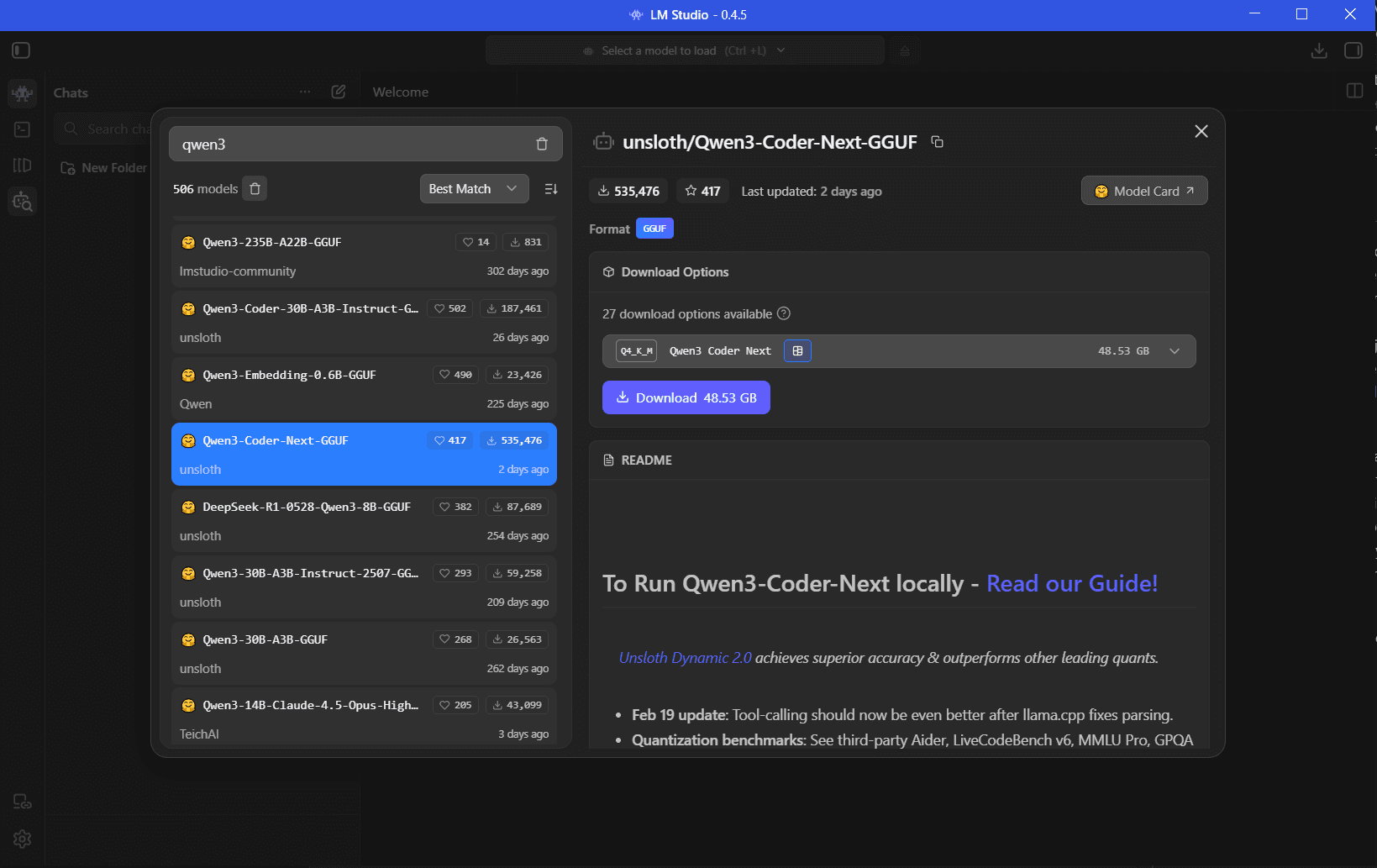
This model will probably take a bit to download, so in the meantime let's grab the autocompletion model. This one will be a lot smaller. I've been using the Qwen2.5 Coder 1.5B Instruct model, so go ahead and search for that in the Model Search. We don't need tool use for autocompletion, so just download the model from "lmstudio-community" or the base Qwen model.
Once both models are downloaded, you should see them both listed in the "My Models" tab (the icon with the multiple pages or panes). If you click on a model, you should also see a panel to the right that contains info about that model. Now we'll need to make some tweaks to the settings of the Qwen3 Coder Next model to optimize for AI coding agent use. Once you click that model, in the info panel I mentioned, click the Load tab next to Info. You should see a setting right at the top for Context Length. This is the maximum number of tokens (basically chunks of words) that the model can process in a single input message. Qwen3 Coder Next can handle up to 262144 tokens in one input, but set that to 32768 tokens instead to save memory. (You may have to set it to lesser multiples if you have a weaker system.)
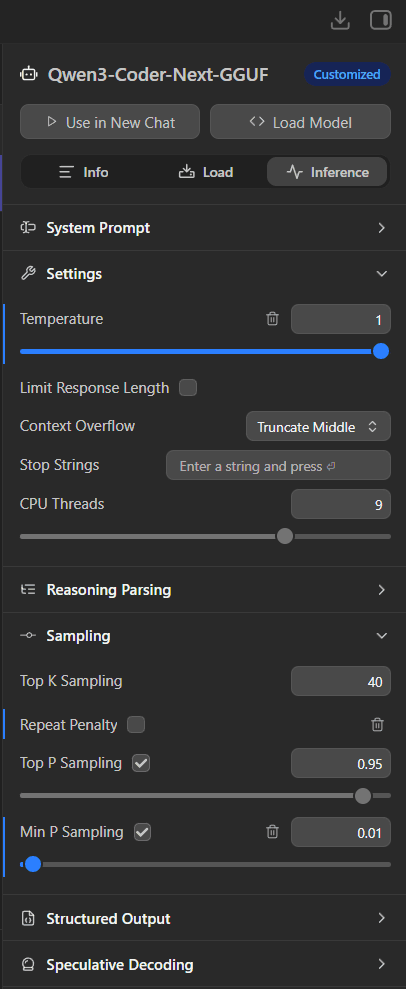
After that, click the Inference tab next to the Load tab and you should see more settings. Based on the recommendations from Qwen, set the following settings:
Temperature: 1.0 (default is 0.9)Min P Sampling: 0.01 (default is 0.05)- Uncheck the box for
Repeat Penaltyor set to 1.0 - Qwen also recommends setting
Top P Samplingto 0.95 andTop K Samplingto 40, but those should already be the default.
Here's what you should have in the Inference tab (click to enlarge):
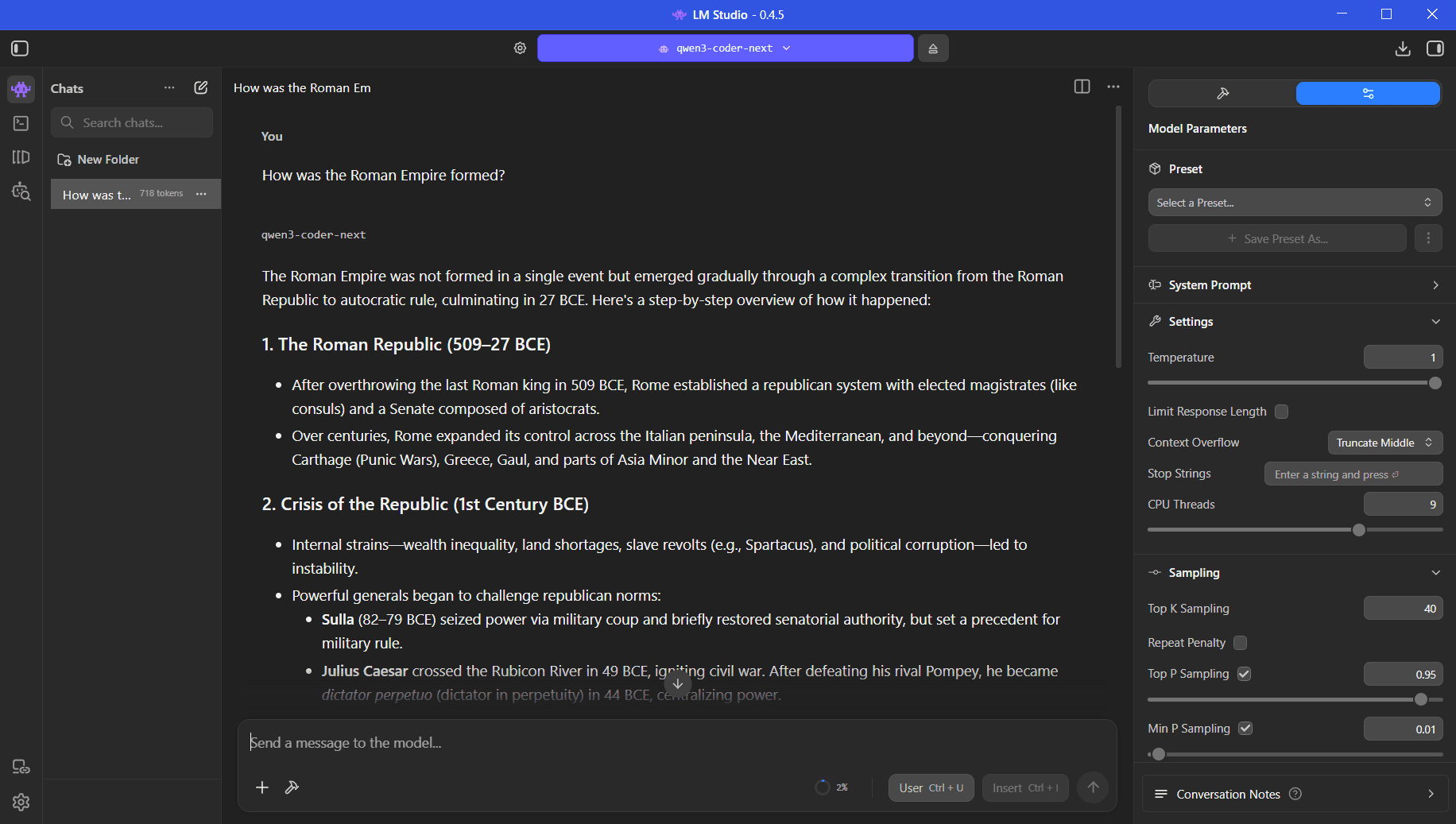
At this point, you can try out your models! Click the Chat icon in the left navigation (the little Space Invaders looking guy), click the button in the center-top of the window that says Select a model to load, select the Qwen3 Coder Next model you installed, and wait for it to load (it might take a few moments). After that, you should be able to chat with your model just like any other LLM.
Now it's time to get our LLM server running! Go to the Developer tab (the little command prompt icon) and click it. You should see a section in the middle of the window that says Loaded Models with currently nothing there. The models we serve on our LLM server will appear here. Click the +Load Model button at the top of the window and select the Qwen3 Coder Next and Qwen2.5 Coder 1.5B Instruct models and load both of them.
If you get an error trying to load the models, that means your machine can't fit both of those models in memory. Try reducing the context window of the Qwen3 Coder Next model. If that doesn't work, you may have to swap Qwen3 Coder Next for a smaller model.
Once your models are loaded, you are ready to serve them! Simply click the little switch next to Status: Stopped at the top and the switch will turn on and the status will change to Running. If you're running into issues and are running any other servers, you may have to change the port of the server, which can be found under the nearby Server Settings menu. Your server should now be running and ready to connect to with an agent application!
Let's Continue!
Now we can get started on setting up our AI agent assisted development environment. We'll start with getting this IDE set up locally first before we get it working on other machines. First thing's first, I'll assume you have Visual Studio Code installed. If not, go ahead and download it from here and install it. This will be the IDE we'll be working with.
For AI coding features, VS Code pushes their Copilot integration a lot. If you have that enabled already, you might want to turn that off since it could conflict with our setup. Instead, we'll be adding AI coding support with an extension called Continue. Continue has pretty much the majority of the AI features that Cursor has, including chat, code autocompletion, and agentic file browsing and editing. Go ahead and go to the Extensions tab for VS Code, search for the Continue extension, and install it.
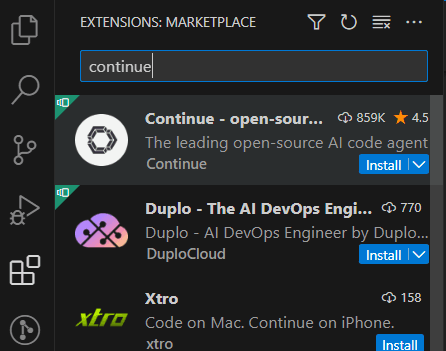
Once you've installed Continue, you should see a new tab in your left navigation bar with the Continue logo. Go ahead and click that tab and you should see the Continue panel open to the right of your left nav. The top of the panel should have your main chat window, followed by some info about the CLI and a setup dialog. We're not setting up Continue to use online providers and we're using LM Studio instead of Ollama for local models, so we'll ignore all of that. Instead, go and click the gear icon at the top right of the panel to open the settings menu.
Once the settings menu is open, click the Configs tab. Under the list of configs, you should see a config called Local Config. Continue has an online app you can integrate with, which we aren't using for this guide, but this config governs the configuration of Continue that's local to your machine. You can even create configs here that are specific to individual projects you're working on and will save config files in the folder of your project. However, we'll want to modify the "global" Local Config that manages Continue across your desktop. Click the little gear icon next to Local Config and it should open up a config.yaml file that's saved under a .continue folder in whatever your user's home folder is.
There's not much in this file right now. If you've installed Continue for the first time, you should pretty much just see this:
name: Local Config
version: 1.0.0
schema: v1
models: []
We'll want to modify the models section of this yaml file to add our Qwen3 Coder Next model first. Get rid of the empty brackets and modify the content of the models section so your config file looks like this:
name: Local Config
version: 1.0.0
schema: v1
models:
  - name: Qwen3 Coder Next
    provider: lmstudio
    model: qwen3-coder-next
    apiBase: http://localhost:1234/v1
    roles:
      - chat
      - edit
      - apply
    capabilities:
      - tool_use
For the apiBase setting, make sure the port number after localhost matches the port number you set in LM Studio's Server Settings menu (it should be 1234 by default). For the model setting, go into LM Studio's Developer tab, click the Copy icon (the overlapping squares) in the card for the Qwen3 Coder Next model, and paste that for the model setting (it should be qwen3-coder-next unless LM Studio changed it). The provider should be lmstudio and name can be whatever you want. The roles chat, edit, and apply should enable the model to do all the jobs an AI agent can do. Adding tool_use under capabilities will give your model the ability to use all of the tools available in Continue to perform its job.
After that, we'll want to add the autocompletion model to the yaml config as well (the Qwen2.5 Coder 1.5B Instruct model in the case of this guide). Modify the content below the Qwen3 Coder Next model in the yaml file so your config looks like this:
name: Local Config
version: 1.0.0
schema: v1
models:
  - name: Qwen3 Coder Next
    provider: lmstudio
    model: qwen3-coder-next
    apiBase: http://localhost:3737/v1
    roles:
      - chat
      - edit
      - apply
    capabilities:
      - tool_use
  - name: Qwen2.5-Coder-1.5B
    provider: lmstudio
    model: qwen2.5-coder-1.5b-instruct
    apiBase: http://localhost:3737/v1
    roles:
      - autocomplete
    autocompleteOptions:
      debounceDelay: 300  # Milliseconds to wait before triggering
      maxPromptTokens: 1024 # Caps the number of tokens sent to the model
      onlyMyCode: true  # Only trigger within your project files
Again, make sure the port number is right in apiBase and get the name to paste into model like we did before for the other model. I've thrown in some extra settings here to optimize the autocomplete feature and added some comments so you can see what they do.
Once you've gotten the config yaml modified, you should be good to go to use your own locally hosted coding agent in your IDE. Try out opening one of your projects, clicking the Continue tab, and making requests in the chat window. In the chat window, be sure to switch the role from Chat to Plan or Agent if you want to make use of the AI tools like file browsing, creation, and editing. Congrats! You now have a locally hosted Cursor running on your machine! Enjoy not blowing through tons of AI provider credits a month!
We're not done yet however! What if you're in a coffee shop doing work on your laptop and want access to your new self-hosted AI model so you can still do agentic coding on your laptop? I doubt that laptop could run that model directly on its own hardware. However, you have perfectly good LM Studio server serving self-hosted models running on your desktop already, so I'll show you how you can connect to and use that LM Studio server from anywhere!
Heads or Tails
In order to connect to your LM Studio with other devices from inside and outside your home, we're going to use something called Tailscale. Tailscale is like a virtual private network (VPN) of sorts. You can add devices to a Tailscale network and, using their Tailscale IPs, they can connect to each other from anywhere! This is just what we need for being able to connect to our LM Studio server on our desktop at home with our laptop in the coffee shop (or anywhere really).
To get started with Tailscale, just go to their website here and click the Get Started button at the top. From here, you'll have a list of providers that you can use to sign in with. Pick from either your Google account, Microsoft account, Apple account, or Github. From there, choose "Personal Use" and you should then be presented with a screen with a list of devices in your Tailscale network. You may be prompted to add a new device to your network. Either way, there's not much we can do here just yet until we add our devices to the Tailscale network.
To add a new device to Tailscale, you need to install the Tailscale client app on that device. You can find the downloads for the Tailscale client here. Go ahead and download the client on both your desktop and your laptop. Once you install it, you'll be prompted to login, so just login with the same provider you created your Tailscale account with. You'll then be presented with a dialog to connect to your Tailscale network. Just click Connect and your device will be added to the network. If both devices are powered on and signed into Tailscale, you should see them both listed in that Devices window from earlier with Connected in the Last Seen column. In the Addresses column, you'll see the Tailscale IP addresses of each of your devices. Make note of your device name under Machine and the IP address under Addresses of your desktop that's running LM Studio, since we'll need these in a bit.
Now it's time to connect everything up! Let's go back to LM Studio and click on the Developer tab in the nav bar. Click on the Server Settings button at the top of the panel and a menu should open up. If you had to change the port number of your server, you've already seen this menu. Click on the switch that says Serve on Local Network. Normally this would allow other devices on your LAN to connect to LM Studio, but with Tailscale, now any device on your Tailscale network can now connect to LM Studio, no matter where they are! Once you turn on Serve on Local Network, go ahead and click the switch next to the status to start the server again. Depending on your OS, you may get a prompt to allow connections to LM Studio through your firewall, so allow those. You may have to even add Tailscale as an exception to your firewall manually if you're running into issues, so check the Tailscale documentation if you run into that since that's a more device specific issue.
Once you get LM Studio serving on the local network, you'll have to make some changes to Continue in order for it to keep working. Open up the config.yaml file again and look for the settings in each of your models for the apiBase setting. Previously, we've used a localhost address. While this can still work on our desktop, it won't work on other machines. We'll update the address in each of the apiBase lines by replacing each instance of localhost with one of two options: either the machine name on Tailscale of your desktop you noted from earlier, or the IP address on Tailscale of that device. Pick which ever one you want and paste it in-place of localhost. (e.g. http://localhost:1234/v1 will become http://my-device-name:1234/v1 or http://100.123.45.67:1234/v1) If one doesn't work for you, try out the other.
Once you've made those changes to the config file for Continue on your desktop, test it out to make sure it's still working. Once it's good to go, plug a USB drive into your desktop, find that config file in your .continue folder and copy it over. Once you have that config file saved to a thumb drive or some other file transfer mechanism, open your laptop back up and follow the steps to install VS Code and install the Continue extension if you haven't done so already. You should also have the Tailscale client set up and running here as well. Plug in your USB drive and copy over the Continue config.yaml file and copy it over to the .continue folder that should be in the same location as it was on your desktop. If there's a config.yaml file already there, just overwrite it.
Once you've updated your config file for Continue on your laptop and your desktop LM Studio server is still running, go ahead and try chatting with your model on your laptop. If everything went according to plan, you should be getting a response back on your laptop. Congrats! You now have a self-hosted Cursor-like IDE setup with your own AI agent that you can now take anywhere!
Thanks for sticking around to follow this guide! If this has been helpful to you, give me a follow on LinkedIn or any other social media where I'll be posting more content like this, or drop me an email at vacommero@gmail.com.